For the complete documentation index, see llms.txt. Markdown versions of all docs pages are available by appending .md to any docs URL.
Microsoft Entra ID setup
Set up a Microsoft Entra ID App Registration, register kgateway as an OAuth2 client, and give the gateway a network path to reach Entra ID.
Set up a Microsoft Entra ID app registration, register kgateway as an OAuth2 client, and give the gateway a network path to reach Entra ID. Every Entra ID guide in this section starts here.
When you finish, you choose an authentication flow:
- Authorization code flow for browser traffic.
- Access token validation for API clients that already hold a token.
Before you begin
Follow the Get started guide to install kgateway.
Follow the Sample app guide to create a gateway proxy with an HTTP listener and deploy the httpbin sample app.
Get the external address of the gateway and save it in an environment variable.
export INGRESS_GW_ADDRESS=$(kubectl get svc -n kgateway-system http -o jsonpath="{.status.loadBalancer.ingress[0]['hostname','ip']}")
echo $INGRESS_GW_ADDRESS
A Microsoft Entra ID tenant with an App Registration. At minimum, set the following on the App Registration:
Setting Value Supported account types Accounts in this organizational directory only Platform Web Redirect URI https://www.example.com/oauth2/redirectThe redirect URI path is
/oauth2/redirect, which is the default callback path that kgateway registers. You can override it withredirectURIin theGatewayExtensionif needed.A test user in your Entra ID directory. You create this user in Create a test user.
Important
By default, Entra ID issues v1.0 access tokens for an API that you expose on your App Registration. A v1.0 token has the iss claim https://sts.windows.net/{tenant-id}/ and an aud claim of your Application ID URI, such as api://{client-id}. Its signing keys are at https://login.microsoftonline.com/{tenant-id}/discovery/keys. These values differ from the v2.0 values (/v2.0 and /discovery/v2.0/keys), so use the v1.0 values in the access token validation flow. To get v2.0 tokens instead, set requestedAccessTokenVersion to 2 in the App Registration manifest.
Configure Microsoft Entra ID
Create an App Registration, configure the required settings, and add a test user.
Create an App Registration
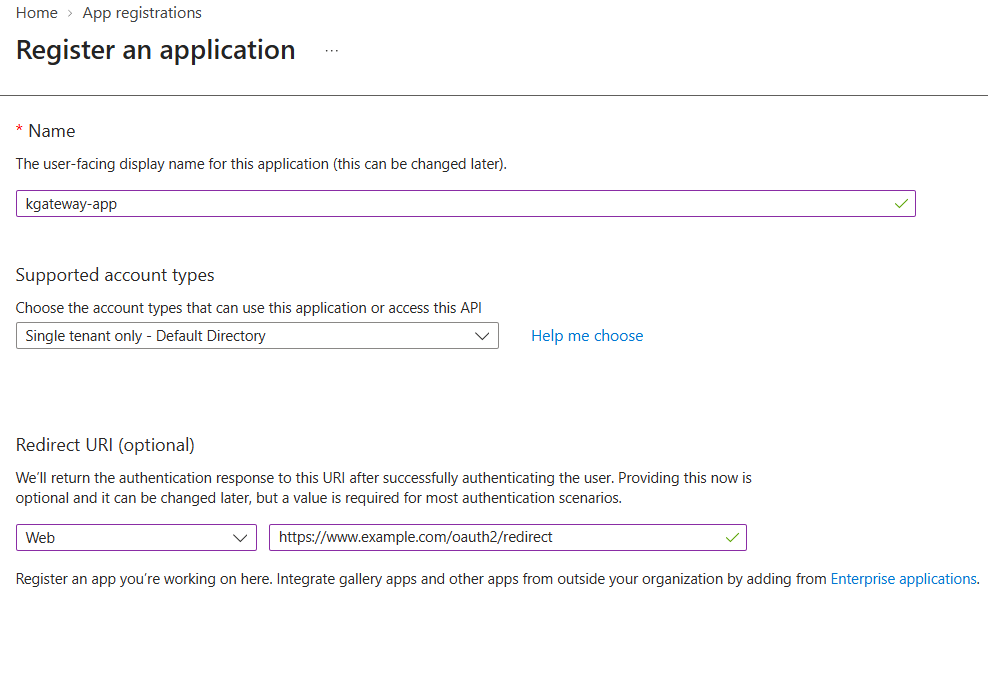
Kgateway is a server-side confidential client. It holds the client secret and performs the code exchange itself, so register it as a Web application rather than a Single-page application.
Log in to the Microsoft Entra admin center with your administrator credentials.
Go to Applications > App registrations, and click New registration.
Configure the application:
- Name:
kgateway-app - Supported account types: Accounts in this organizational directory only
- Redirect URI: Select Web and enter
https://www.example.com/oauth2/redirect
- Name:
Click Register.
Expose an API scope
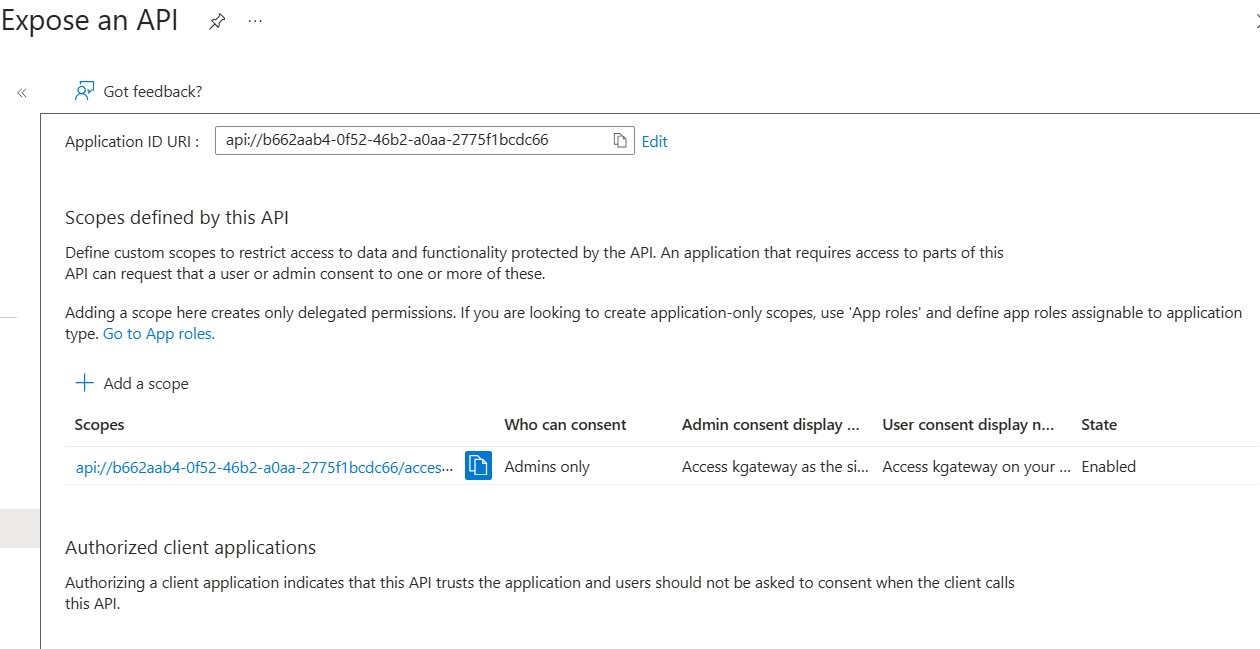
To use the access token validation flow, you must define a custom scope.
Go to Expose an API.
Click Set next to Application ID URI. Accept the default
api://{client-id}and click Save.Click Add a scope:
- Scope name:
access_as_user - Who can consent: Admins only
- Admin consent display name: Access kgateway as the user
- Admin consent description: Allows the app to access kgateway on behalf of the signed-in user
- State: Enabled
- Scope name:
Click Add scope.
Go to API permissions > Add a permission > My APIs > kgateway-app.
Select Delegated permissions, check
access_as_user, and click Add permissions.Click Grant admin consent for [Your Tenant].
Copy the tenant ID, client ID, and client secret
Go to Overview. Copy the Application (client) ID and the Directory (tenant) ID. The flow guides use these values for
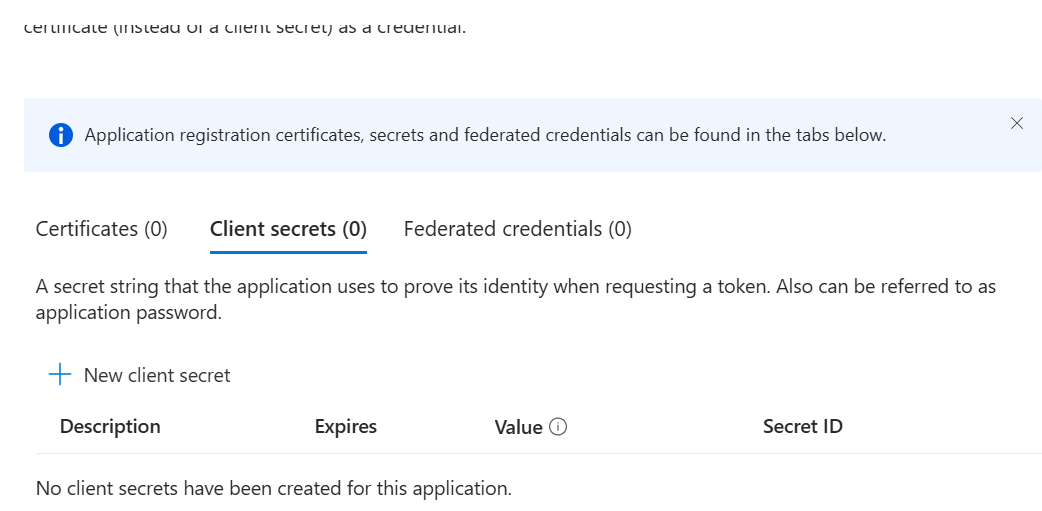
YOUR_CLIENT_IDandYOUR_TENANT_ID.Go to Certificates & secrets > Client secrets, and click New client secret.
Add a description, such as
kgateway-secret, and select an expiry period. Click Add.Copy the secret value immediately.
Note
Entra ID shows the secret value only once, right after you create it. If you lose it, create a new client secret and update the Kubernetes Secret. Then delete the old client secret from the App Registration.
Create a test user
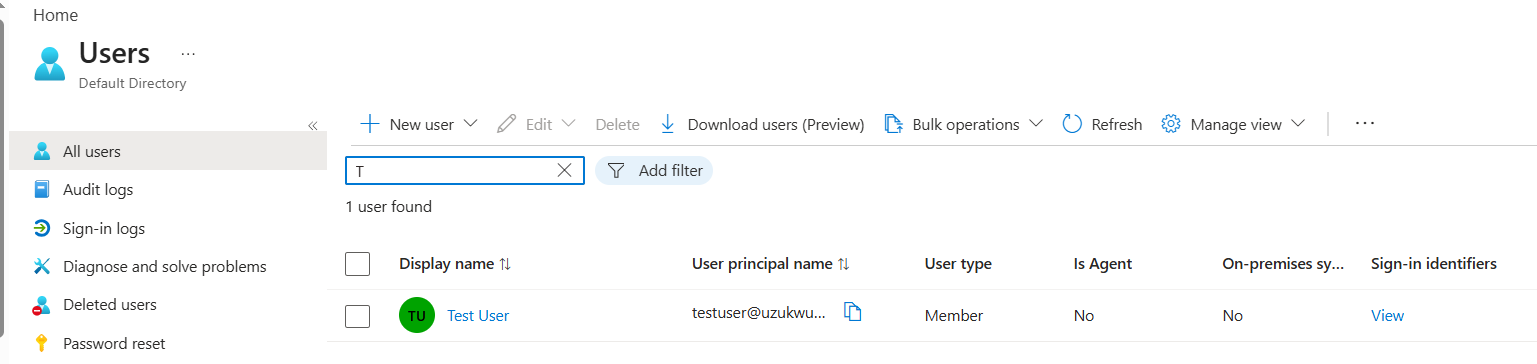
Go to the Microsoft Entra admin center > Identity > Users > All users.
Click New user > Create new user.
Configure the user:
- User principal name:
[email protected] - Display name:
Test User - Password: Enter a password or let it auto-generate
- User principal name:
Click Create.
Go to Applications > Enterprise applications > kgateway-app > Users and groups.
Click Add user/group, select the test user, and assign them to the app.
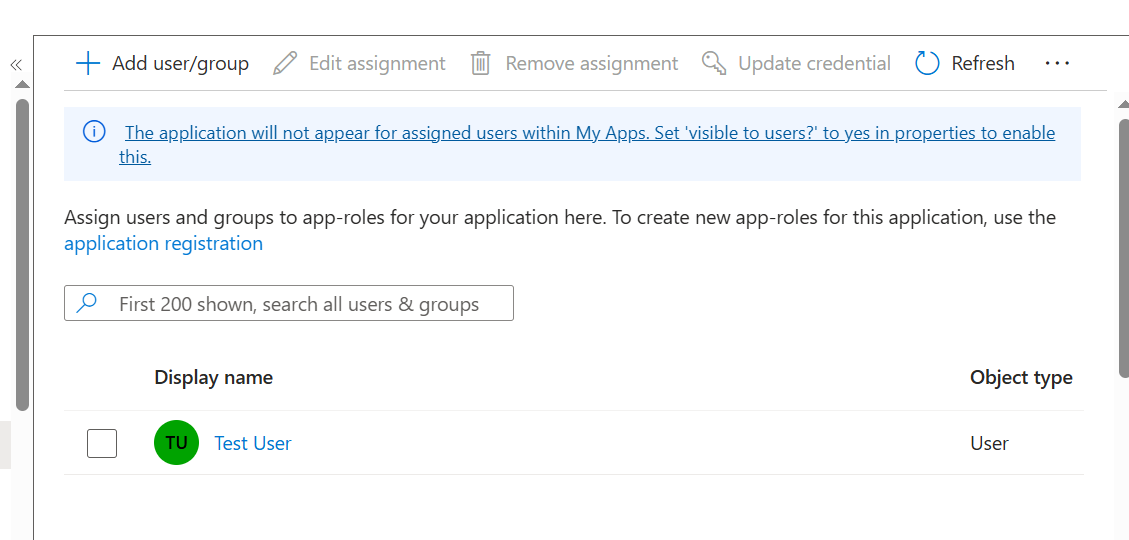
Note
User assignment only takes effect if Assignment required? is set to Yes in the Enterprise Application’s Properties.
Connect kgateway to Microsoft Entra ID
Both authentication flows need a network path from the gateway to Entra ID. Create these two resources before configuring either flow.
Create a Backend for Entra ID
Create a Backend resource to define how kgateway reaches Entra ID.
kubectl apply -f- <<EOF
apiVersion: gateway.kgateway.dev/v1alpha1
kind: Backend
metadata:
  name: entra-id
  namespace: kgateway-system
spec:
  type: Static
  static:
    hosts:
    - host: login.microsoftonline.com
      port: 443
EOF
The port must be 443 because kgateway communicates with Entra ID over HTTPS.
Note
This address is separate from the public Entra ID URL that you configure on the GatewayExtension. The Backend provides the network path for token exchange and OIDC discovery. The browser does not need to reach it.
Configure TLS for the Entra ID Backend
Entra ID uses a certificate from a public, trusted CA, so you can use the system’s trusted CA certificates.
kubectl apply -f- <<EOF
apiVersion: gateway.kgateway.dev/v1alpha1
kind: BackendConfigPolicy
metadata:
  name: entra-id-tls
  namespace: kgateway-system
spec:
  targetRefs:
    - group: gateway.kgateway.dev
      kind: Backend
      name: entra-id
  tls:
    sni: login.microsoftonline.com
    wellKnownCACertificates: System
EOF
Next steps
Microsoft Entra ID is configured and the gateway can reach it. Now protect a route with the flow that matches how your clients arrive.
Cleanup
You can remove the resources that you created in this guide.Remove the resources from this page only after you have cleaned up whichever flow you configured.
kubectl delete BackendConfigPolicy entra-id-tls -n kgateway-system
kubectl delete Backend entra-id -n kgateway-system
To remove Entra ID, delete the App Registration from the Microsoft Entra admin center.