Multiplex MCP
To federate multiple MCP servers on the same gateway, you can use a label selector in the MCP Backend.
This approach makes it easier for you to add more MCP servers by adding labels. It also lets your clients access tools from multiple MCP servers through a single endpoint and MCP connection.
Before you begin
Set up an agentgateway proxy.
Step 1: Deploy the MCP servers
Deploy multiple Model Context Protocol (MCP) servers that you want agentgateway to proxy traffic to. The following example sets up two MCP servers with different tools: one npx based MCP server that provides various utility tools and an MCP server with a website fetch tool.
-
Create an MCP server (
mcp-server-everything) that provides various utility tools. Notice that the Service uses theappProtocol: kgateway.dev/mcpsetting. This way, kgateway configures the agentgateway proxy to look for an equivalent AgentgatewayBackend resource.kubectl apply -f- <<EOF apiVersion: apps/v1 kind: Deployment metadata: name: mcp-server-everything labels: app: mcp-server-everything spec: replicas: 1 selector: matchLabels: app: mcp-server-everything template: metadata: labels: app: mcp-server-everything spec: containers: - name: mcp-server-everything image: node:20-alpine command: ["npx"] args: ["-y", "@modelcontextprotocol/server-everything", "streamableHttp"] ports: - containerPort: 3001 --- apiVersion: v1 kind: Service metadata: name: mcp-server-everything labels: app: mcp-server-everything spec: selector: app: mcp-server-everything ports: - protocol: TCP port: 3001 targetPort: 3001 appProtocol: kgateway.dev/mcp type: ClusterIP EOF -
Create another MCP server workload with a website fetcher tool.
kubectl apply -f- <<EOF apiVersion: apps/v1 kind: Deployment metadata: name: mcp-website-fetcher spec: selector: matchLabels: app: mcp-website-fetcher template: metadata: labels: app: mcp-website-fetcher spec: containers: - name: mcp-website-fetcher image: ghcr.io/peterj/mcp-website-fetcher:main imagePullPolicy: Always --- apiVersion: v1 kind: Service metadata: name: mcp-website-fetcher labels: app: mcp-website-fetcher spec: selector: app: mcp-website-fetcher ports: - port: 80 targetPort: 8000 appProtocol: kgateway.dev/mcp EOF -
Create an AgentgatewayBackend that selects both MCP servers that you created.
kubectl apply -f- <<EOF
apiVersion: agentgateway.dev/v1alpha1
kind: AgentgatewayBackend
metadata:
  name: mcp
spec:
  mcp:
    targets:
      - name: mcp-server-everything
        selector:
          services:
            matchLabels:
              app: mcp-server-everything
      - name: mcp-website-fetcher
        static:
          host: mcp-website-fetcher.default.svc.cluster.local
          port: 80
          protocol: SSE
EOF
Step 2: Route with agentgateway
Route to the federated MCP servers with agentgateway.
-
Create an HTTPRoute resource that routes to the AgentgatewayBackend that you created in the previous step.
kubectl apply -f- <<EOF apiVersion: gateway.networking.k8s.io/v1 kind: HTTPRoute metadata: name: mcp spec: parentRefs: - name: agentgateway-proxy namespace: agentgateway-system rules: - backendRefs: - name: mcp group: agentgateway.dev kind: AgentgatewayBackend EOF -
Check that the HTTPRoute is
Accepted, selects the Gateway, and includes backend rules for the AgentgatewayBackend that you created.kubectl describe httproute mcpExample output:
Name:         mcp
Namespace:    default
Labels:       <none>
Annotations:  <none>
API Version:  gateway.networking.k8s.io/v1
Kind:         HTTPRoute
Metadata:
  Creation Timestamp:  2025-08-11T16:16:16Z
  Generation:          1
  Resource Version:    13598
  UID:                    78f649b9-310e-4f21-ac0f-e516f06d8f22
Spec:
  Parent Refs:
    Group:        gateway.networking.k8s.io
    Kind:         Gateway
    Name:         agentgateway-proxy
    Namespace:    agentgateway-system
  Rules:
    Backend Refs:
      Group:   agentgateway.dev
      Kind:    AgentgatewayBackend
      Name:    mcp
      Weight:  1
    Matches:
      Path:
        Type:   PathPrefix
        Value:  /
Status:
  Parents:
    Conditions:
      Last Transition Time:  2025-12-19T03:13:18Z
      Message:
      Observed Generation:   2
      Reason:                Accepted
      Status:                True
      Type:                  Accepted
      Last Transition Time:  2025-12-19T14:24:01Z
      Message:
      Observed Generation:   2
      Reason:                ResolvedRefs
      Status:                True
      Type:                  ResolvedRefs
    Controller Name:         agentgateway.dev/agentgateway
    Parent Ref:
      Group:      gateway.networking.k8s.io
      Kind:       Gateway
      Name:       agentgateway-proxy
      Namespace:  agentgateway-system
Step 3: Verify the connection
Use the MCP Inspector tool to verify that you can connect to your federated MCP servers through agentgateway.
-
Get the agentgateway address.
export INGRESS_GW_ADDRESS=$(kubectl get gateway agentgateway-proxy -n agentgateway-system -o=jsonpath="{.status.addresses[0].value}")
echo $INGRESS_GW_ADDRESS
kubectl port-forward deployment/agentgateway-proxy -n agentgateway-system 8080:80 -
From the terminal, run the MCP Inspector command. Then, the MCP Inspector opens in your browser.
npx modelcontextprotocol/inspector#0.17.5 -
From the MCP Inspector menu, connect to your agentgateway address as follows:
- Transport Type: Select
Streamable HTTP. - URL: Enter the agentgateway address and the
/mcppath, such as${INGRESS_GW_ADDRESS}/mcporhttp://localhost:8080/mcp. - Click Connect.
- Transport Type: Select
-
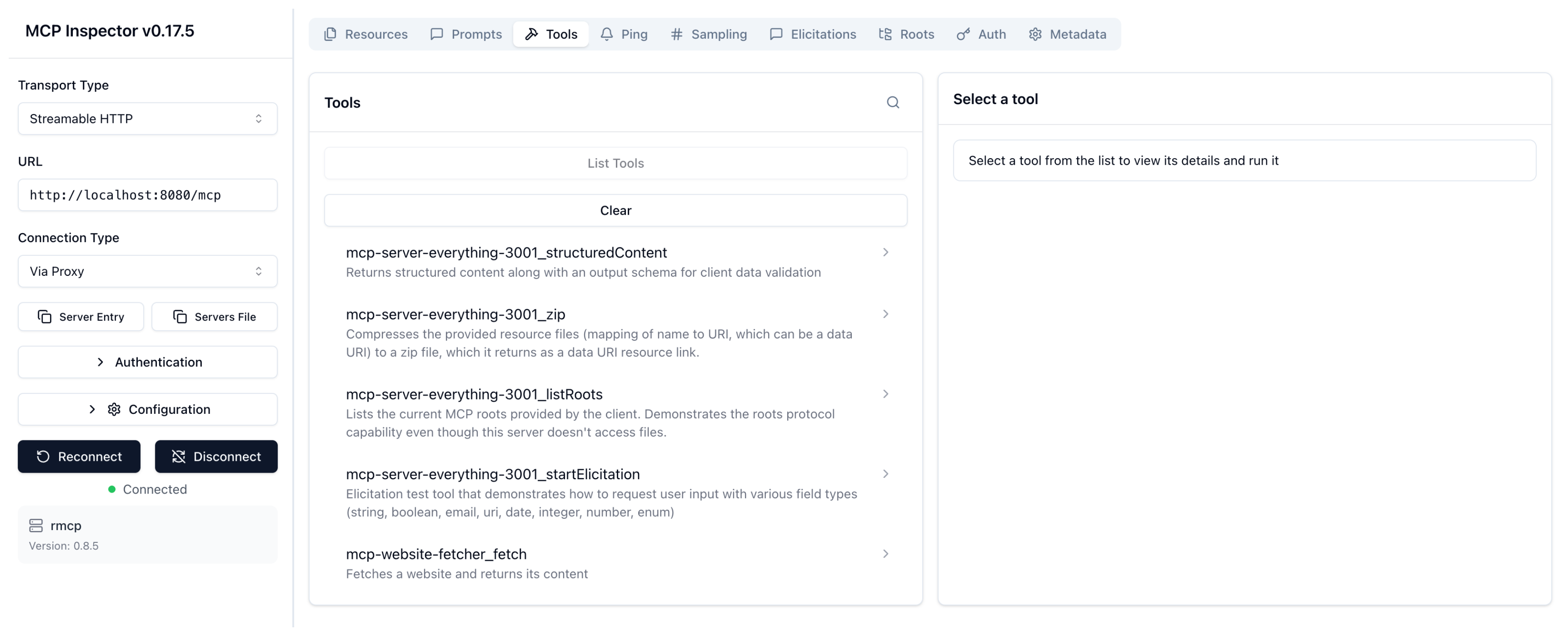
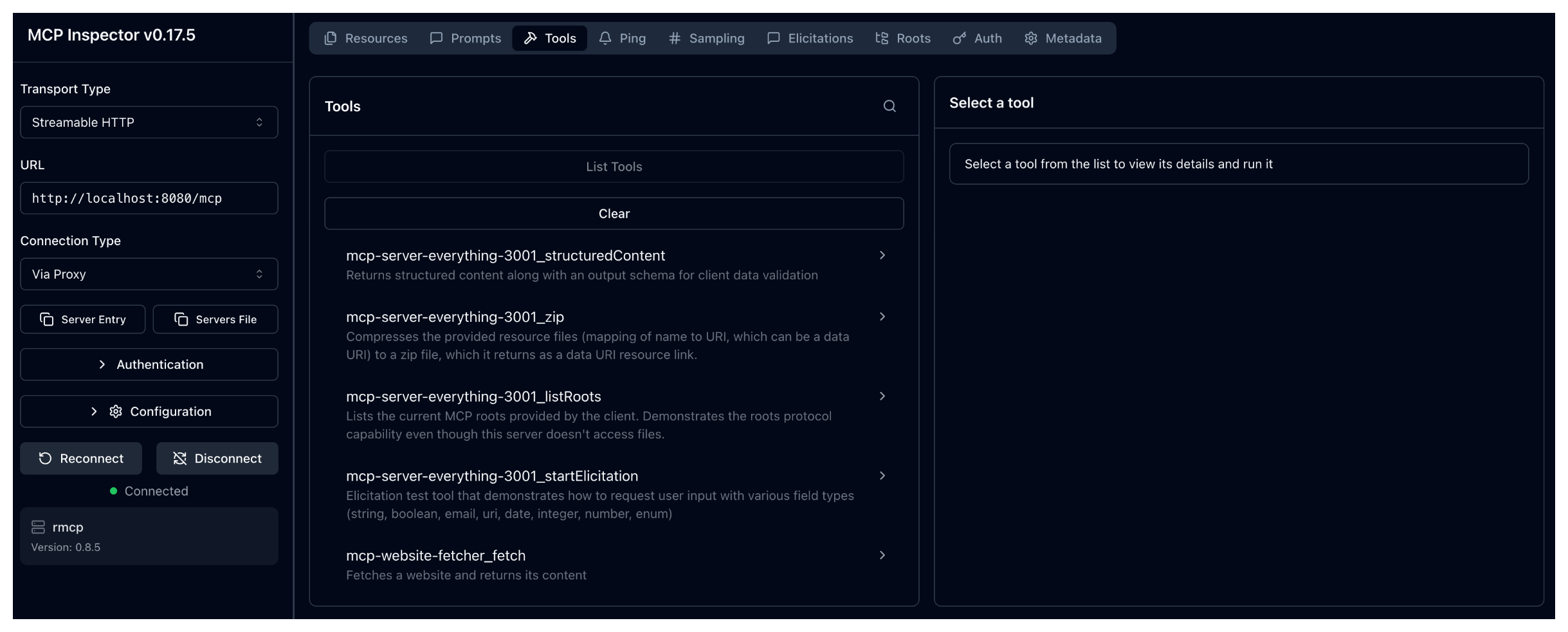
From the menu bar, click the Tools tab, and then List tools. Verify that you see the tools from both servers. The name of the tools are prepended with the names of the MCP servers that you set up in the AgentgatewayBackend.
mcp-server-everything-3001_*: Tools from theserver-everythingMCP server, likeecho,add, etc.mcp-website-fetcher_fetch: Thefetchtool from the website fetcher MCP server.
-
Test the federated tools:
- Test the
mcp-server-everything-3001_echotool: Click List Tools and select theechotool. In the message field, enter any string, such asHello world, and click Run Tool. Verify that your string is echoed back. - Test the
mcp-website-fetcher_fetchtool: Click List Tools and select thefetchtool. In the url field, enter a website URL, such ashttps://lipsum.com/, and click Run Tool.
- Test the
Cleanup
You can remove the resources that you created in this guide.kubectl delete Deployment mcp-server-everything mcp-website-fetcher
kubectl delete Service mcp-server-everything mcp-website-fetcher
kubectl delete AgentgatewayBackend mcp
kubectl delete HTTPRoute mcp